

How to Add E Signatures to Excel Forms
Add e signatures to Excel forms, and see why a true no code form builder is usually a better fit for signed documents.
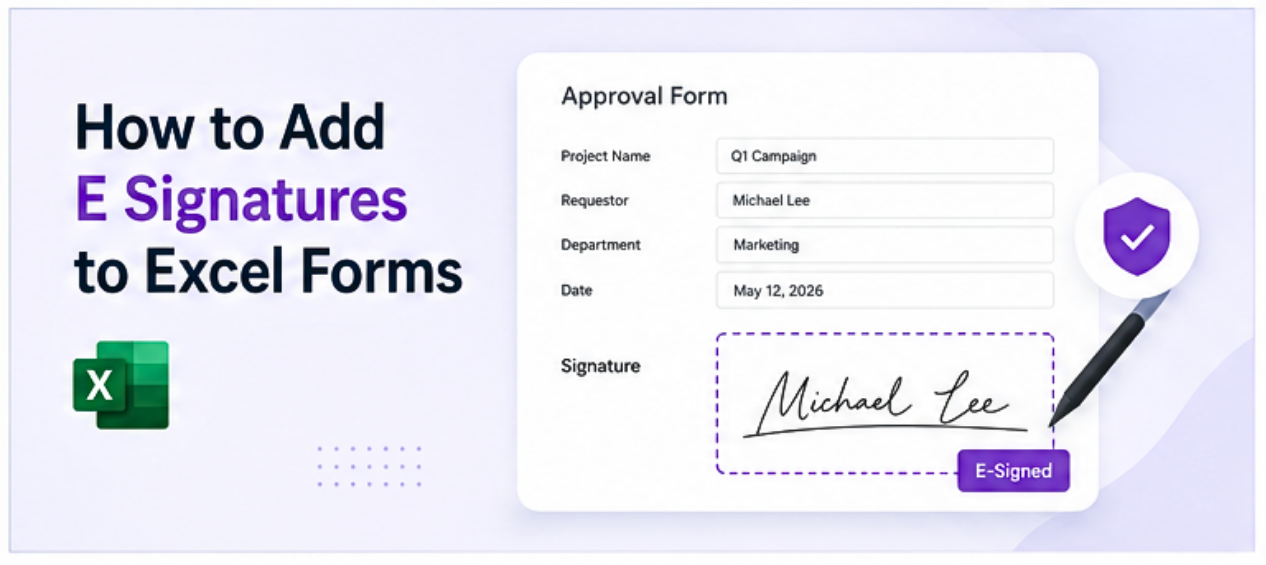
Excel does not have a native, legally binding e signature feature. What it does have are a few workarounds that work for internal, informal sign off workflows, and some third party integrations that add proper e signature functionality on top of a spreadsheet based process. This guide covers all three realistic approaches, what each one is actually good for, and when a purpose built form with a proper signature step is the right move.
Why People Need Signatures in Excel Forms
The most common reason teams look for an e signature solution inside Excel is that they have a form, approval process, or sign off workflow already living in a spreadsheet, and they want to capture a signature without switching to a different tool or rebuilding the process from scratch.
Common use cases include:
- Internal approval forms (expense approvals, purchase requests)
- Policy acknowledgment tracking (employees confirming they have read a document)
- Simple contracts or agreements shared via email as Excel files
- Work order or delivery confirmation forms
The right approach depends on whether the signature needs to be legally binding or whether it is more of an internal acknowledgment.
Method 1: Draw a Signature Using the Draw Tool
This is the simplest method and is best for informal, internal sign offs where legal enforceability is not a concern.
- Enable the Draw tab. If the Draw tab is not visible in the Excel ribbon, go to File, Options, Customize Ribbon, and check the box next to "Draw."
- Open the Draw tab. Click the Draw tab in the ribbon. Select a pen or stylus tool from the options.
- Draw the signature. Use a mouse, trackpad, or stylus to draw a signature directly on the spreadsheet. The signature appears as an ink annotation on the sheet.
- Position the signature. Click the selection tool (the lasso or arrow icon in the Draw tab) to move the signature to the correct area of the form.
This method works on both Windows and Mac. On a touchscreen device or tablet with a stylus, it produces a much cleaner result than using a mouse.
Limitation: This signature is a drawing object, not a verified or legally binding signature. Anyone with access to the file can delete or modify it. It provides no audit trail or timestamp.
Method 2: Insert a Signature Image
This method involves saving a handwritten signature as an image file and inserting it into the spreadsheet. It is common for situations where the same person signs many documents and wants a consistent result.
- Create the signature image. Sign a piece of white paper, photograph or scan it, and crop tightly around the signature. Save it as a PNG file with a transparent or white background.
- Insert the image into Excel. Go to Insert, Pictures, and select the signature image file. Resize and position it in the correct location on the form.
- Lock the image position (optional). Right click the image, select Format Picture, then go to Properties and select "Move and size with cells" to anchor the image to a specific cell area, or "Don't move or size with cells" to keep it in a fixed position.
Limitation: Like the drawn signature, this is a visual element only. It carries no authentication, no timestamp, and no verification. It is not appropriate for contracts or legally binding agreements.
Method 3: Use a Third Party E Signature Integration
For signatures that need to be legally binding, tracked, and auditable, a third party e signature tool is the correct approach. Several of the major e signature platforms offer some form of Excel integration.
DocuSign: DocuSign does not embed directly into Excel as a native feature, but documents exported from Excel (as PDFs) can be sent through DocuSign for signature collection. DocuSign also has a Microsoft 365 add in that can initiate a signature request from within some Office applications.
Adobe Acrobat Sign: Similar to DocuSign, Adobe Acrobat Sign works with Excel files converted to PDF. The Adobe Acrobat add in for Microsoft 365 allows files to be sent for signature from within the Office environment.
Microsoft Signature Line (Windows only): Excel on Windows includes a feature called a Signature Line, found under Insert, then Signature Line. This adds a placeholder that a recipient can click to add a digital signature using a digital certificate. This is more formal than the drawing method and produces a verifiable signature linked to a Microsoft account or digital ID, but it requires the recipient to have a compatible digital certificate set up, which limits its practical use for most small business workflows.
General process for third party tools:
- Complete the Excel form and export or convert to PDF.
- Upload the PDF to the e signature platform.
- Add signature fields to the document.
- Send to the signer via email link.
- Receive the signed PDF back with a certificate of completion.
Limitation: None of these methods create a native, embedded e signature within the live Excel file that updates the spreadsheet data. They are document signing workflows that use the Excel file as a starting point, not an integrated data capture step.
When a Purpose Built Form Is the Better Approach
All three Excel signature methods share a common limitation: the signature sits on top of the spreadsheet, separate from the data. When a workflow needs a signature as part of a structured form submission, with the signature confirmed and the form data recorded together in one step, a purpose built form tool is more practical than retrofitting Excel.
This is especially true for:
- Approval workflows where the signature triggers the next step
- Forms shared with people outside the organization
- Processes where an audit trail is required
- Forms that feed data into a dashboard or tracker
A no code tool connected to the underlying spreadsheet or data source can include a proper signature field as part of the form, confirm the submission, and write the response back to the data source, all in one flow, without requiring the signer to open Excel.
See How to Turn a Spreadsheet Into an App Without Code for more on how this works.
Frequently Asked Questions
Related Topics
Build Your Internal Tools With Huddle
Huddle is a zero code application builder that connects to Google Sheets, Airtable, Excel 365, HubSpot, and Salesforce without requiring data migration. Build dashboards, forms, and portals with drag and drop widgets and publish to a shareable link in minutes.
Start building with Huddle