

How to Set Up an Inventory Tracker in Excel
Build a simple inventory tracker in Excel, and learn when an inventory tracker should graduate into a real app.
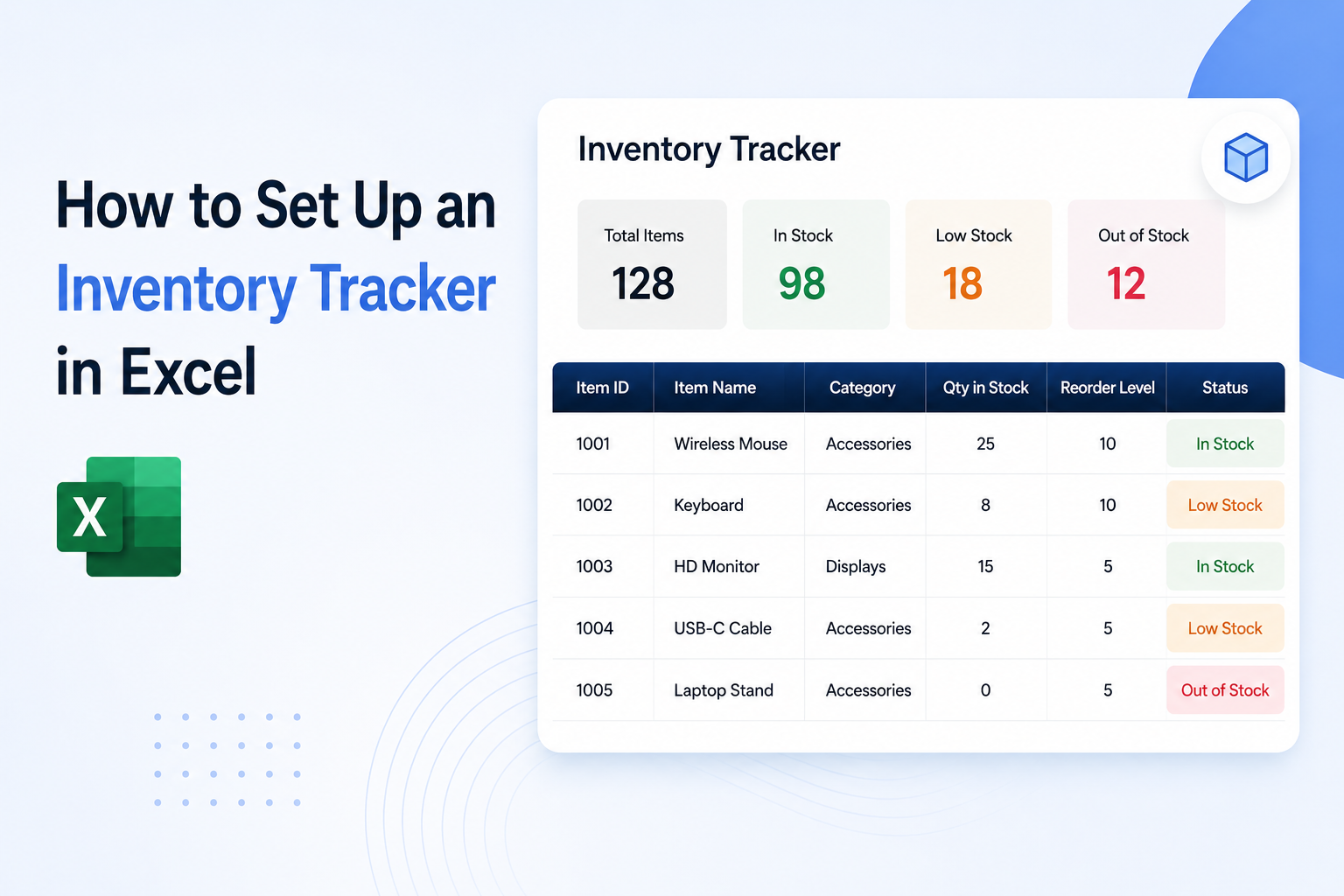
An Excel inventory tracker can be built in under an hour if the structure is set up correctly from the start. The most common mistake is skipping the table format and building a flat list instead, which makes formulas, filtering, and later automation much harder. This guide covers how to build a clean, functional inventory tracker in Excel, the formulas worth knowing, and when a connected dashboard makes more sense than a standalone spreadsheet.
What an Excel Inventory Tracker Should Include
Before building anything, it helps to decide which columns the tracker actually needs. A functional inventory tracker typically includes:
- Item name or SKU
- Category
- Unit of measurement (units, boxes, kg, etc.)
- Quantity in stock
- Reorder point (the quantity at which a new order should be placed)
- Reorder quantity
- Supplier name
- Unit cost
- Total value (calculated)
- Last updated date
- Notes
Not every tracker needs all of these. Start with the fields that are actively used and add columns later as needed.
Step 1: Set Up the Spreadsheet as a Structured Table
Open a new Excel workbook and start in Sheet1. Rename the sheet "Inventory" by right clicking the tab.
In row 1, enter the column headers. Use clear, single word or short phrase labels without spaces where possible (Item, SKU, Category, QtyInStock, ReorderPoint, ReorderQty, Supplier, UnitCost, TotalValue, LastUpdated, Notes).
Click any cell inside the header row, then go to Insert and click Table. Check "My table has headers" and click OK. Excel will format the range as a structured table and add filter dropdowns to each column header automatically.
Give the table a name by clicking on it and looking at the Table Design tab. Change the default name (Table1) to something descriptive like InventoryTable. This makes formulas easier to read later.
Step 2: Add the Total Value Formula
In the TotalValue column, the formula should multiply quantity in stock by unit cost. Since the data is in a structured table, Excel will use column reference names automatically.
Click the first cell in the TotalValue column (below the header) and enter:
=[@QtyInStock]*[@UnitCost]
Excel will apply this formula to the entire column automatically since it is inside a structured table. Every new row added to the table will also pick up this formula.
Step 3: Add a Low Stock Alert Column
A low stock alert is one of the most useful additions to an inventory tracker. It flags rows where the current quantity has dropped to or below the reorder point.
Add a new column called LowStock. In the first data row, enter:
=IF([@QtyInStock]<=[@ReorderPoint],"Reorder","OK")
This returns "Reorder" when the stock quantity is at or below the reorder point, and "OK" otherwise.
To make this more visible, select the LowStock column and apply conditional formatting. Go to Home, click Conditional Formatting, then Highlight Cell Rules, then Text That Contains. Set "Reorder" to format with a red fill or bold red text. Now any row that needs attention stands out immediately.
Step 4: Add a Last Updated Date Column
Inventory data is only useful if it is current. A LastUpdated column helps track when each row was last changed.
This can be filled in manually, or automated with a macro if the workbook is used by a single person on a desktop. For teams sharing a file via OneDrive or SharePoint, manual entry is more reliable since macros can be unreliable in shared workbook environments.
Step 5: Add a Summary Dashboard Sheet
A second sheet with summary stats makes the tracker more useful for quick reference without scrolling through the full inventory list.
Add a new sheet called "Dashboard." In this sheet, pull summary data from the InventoryTable using formulas.
Total number of items: =COUNTA(InventoryTable[Item])
Total inventory value: =SUM(InventoryTable[TotalValue])
Number of items needing reorder: =COUNTIF(InventoryTable[LowStock],"Reorder")
These three numbers give a quick overview of the current state of the inventory without opening the full list.
Step 6: Protect the Structure
Once the tracker is set up, protect the sheet structure to prevent accidental column deletion or header edits. Go to Review, then Protect Sheet. Set a password and allow only cell editing (not format or structure changes). This is especially useful if multiple people use the same file.
Limitations of an Excel Inventory Tracker
An Excel inventory tracker works well for small to medium inventory sets managed by one or two people. Common limitations that show up as usage grows:
Real time collaboration is unreliable. Excel shared workbook features have improved with OneDrive, but simultaneous editing by multiple people can still cause conflicts, especially with formulas.
There is no view for non Excel users. If a warehouse team member, a manager, or an external supplier needs to check stock levels, they need access to the spreadsheet, which often means more access than is needed.
Reporting stays manual. The summary dashboard sheet is functional, but updating it and adding new charts requires someone to maintain the spreadsheet actively.
There is no audit trail. Excel does not track who changed what and when without additional setup, which can be a problem for inventory accountability.
When a Live Connected Dashboard Makes More Sense
When the inventory tracker needs to be shared with a team, viewed on a dashboard that updates in real time, or connected to other data sources like purchase orders or sales records, a no code tool that connects directly to the Excel file can extend what the spreadsheet already does without replacing it.
The spreadsheet stays the source of truth. The no code tool reads from it and presents the data in a dashboard, table, or form that the right people can access from a browser, without opening Excel.
See How to Turn a Spreadsheet Into an App Without Code for a full walkthrough of how this works.
Frequently Asked Questions
Related Topics
Build Your Internal Tools With Huddle
Huddle is a zero code application builder that connects to Google Sheets, Airtable, Excel 365, HubSpot, and Salesforce without requiring data migration. Build dashboards, forms, and portals with drag and drop widgets and publish to a shareable link in minutes.
Start building with Huddle