

How to Add Workflows to Google Sheets
Add automated workflows to Google Sheets, and learn when a no code app is the better fit for team workflows.
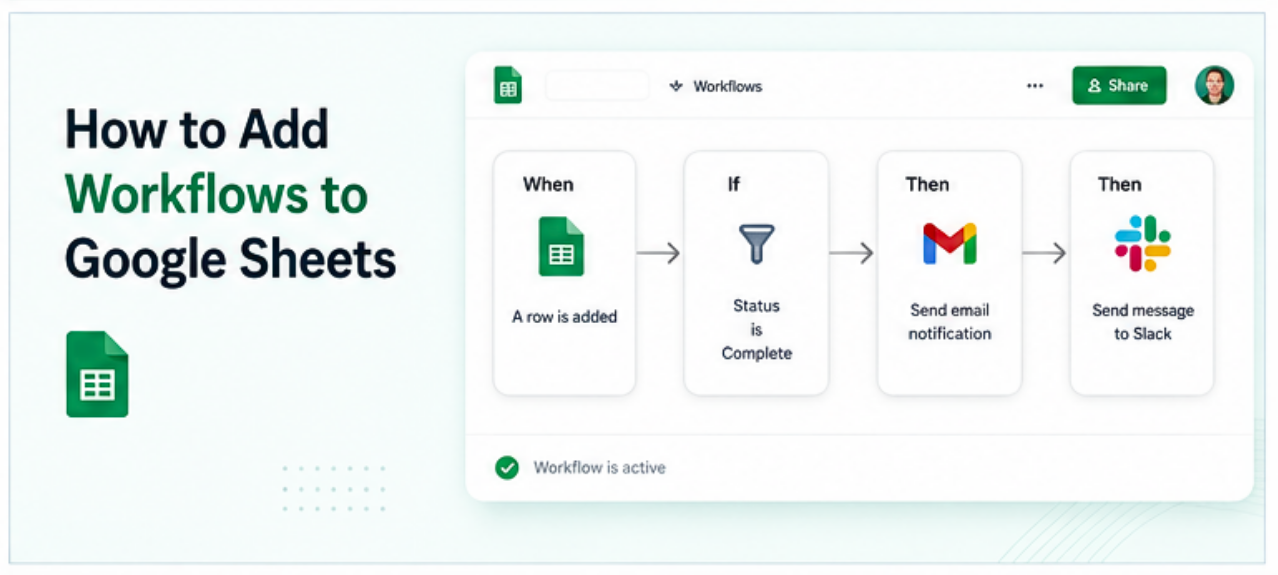
Google Sheets does not have a built in workflow engine, but it supports several approaches for adding workflow behavior, from simple email notifications when data changes, to automated multi step processes triggered by form submissions or row updates. This guide covers four practical methods, what each one is capable of, and when a connected no code tool handles the workflow more reliably than a Sheets based approach.
What "Workflow" Means in the Context of Google Sheets
A workflow in Google Sheets generally means one of a few things:
An automated notification when data is added or changed, such as emailing a manager when a new request row is added.
A conditional action triggered by a value, such as moving a row to a different sheet when a status column is set to "Approved."
A multi step process that connects the spreadsheet to other tools, such as creating a task in a project manager when a row is added, or sending a Slack message when a row is updated.
A form based intake process where submissions from Google Forms write to the sheet and trigger a follow up action.
The right approach depends on which of these the workflow actually needs.
Method 1: Google Sheets Email Notifications (Built In)
Google Sheets has a native notification feature that sends an email when the spreadsheet is edited. It does not require any setup beyond the notification settings.
How to set it up: Open the spreadsheet. Go to Tools, then Notification settings. Choose between "Any changes are made" or "A user submits a form" (if a Google Form is connected). Select whether to receive notifications immediately or as a daily digest. Click Save.
This sends an email to the Google account that set it up (or others added to the notification list) whenever the sheet is edited.
Best for: Simple alert workflows where someone just needs to know the spreadsheet changed. Not suitable for conditional logic (only notify if column B is "Pending"), routing to different people based on the data, or any action beyond sending an email.
Method 2: Google Apps Script (Built In, Requires Code)
Google Apps Script is a JavaScript based scripting environment built into Google Sheets. It allows custom automation to be written directly inside the spreadsheet, triggered by events like edits, form submissions, or a schedule.
Example use case: Send a notification email to a specific person only when a row in column D is changed to "Approved."
How to set it up: Open the spreadsheet. Go to Extensions, then Apps Script. This opens a code editor. Write a function using the Apps Script API. Attach it to a trigger by going to Triggers (the clock icon) and setting the function to run on a specific event, such as "On edit" or "On form submit."
A basic conditional notification function might look like this:
function onEdit(e) {
  var sheet = e.source.getActiveSheet();
  var range = e.range;
  if (range.getColumn() == 4 && e.value == "Approved") {
    MailApp.sendEmail("manager@company.com", "Approval Required", "A new item has been approved in the tracker.");
  }
}
Best for: Teams with someone comfortable writing basic JavaScript who needs conditional logic, row level triggers, or integrations with other Google services (Gmail, Calendar, Drive). Not well suited for complex multi step workflows or non Google integrations without additional API work.
Method 3: Zapier or Make (No Code Automation Tools)
Zapier and Make (formerly Integromat) are dedicated workflow automation platforms that connect Google Sheets to hundreds of other tools, with no code required. They work by triggering an action in another app whenever something changes in the spreadsheet.
How it works: In Zapier or Make, create a "Zap" or "Scenario" that starts with a Google Sheets trigger (such as "New row added" or "Row updated") and ends with an action in another tool (such as "Create task in Asana," "Send message in Slack," or "Add contact in HubSpot").
Example workflow: A new row is added to a Google Sheets intake form response sheet. Zapier detects the new row, creates a task in Asana assigned to the relevant team member, and sends a Slack notification to the team channel.
Best for: Connecting Google Sheets data to other tools without writing code. Zapier's free plan supports a limited number of Zaps and runs per month, and more complex multi step workflows or higher volumes require a paid plan.
Limitation: Zapier and Make workflows still require someone to set up and maintain the connections, and the logic lives in the automation tool rather than in the spreadsheet itself, which can make troubleshooting harder when something breaks.
Method 4: Connect Google Sheets to a No Code Portal Builder
When the workflow involves a team submitting requests, managers approving them, and statuses being tracked in one place, a no code tool connected to the Google Sheets data can handle the full workflow, replacing the mix of spreadsheet edits, email notifications, and Zapier triggers with a single, purpose built interface.
How it works: A no code builder connects to the Google Sheets data directly. A form in the portal writes new rows to the sheet as submissions. Status updates made in the portal write back to the sheet. Notifications and routing happen within the portal's workflow settings, not through a patchwork of connected tools.
Example workflow: An employee submits a request through a portal form. The submission writes to the Google Sheet. A manager sees the pending requests in a kanban or table view in the portal. The manager updates the status to "Approved" in the portal. The sheet updates, and the employee sees the status change on their end.
The spreadsheet remains the source of truth throughout. The portal is just the interface layer on top of it.
Best for: Teams that need a structured, multi step workflow with a clean user interface for both submitters and reviewers, without every participant needing access to the spreadsheet itself.
See How to Turn a Spreadsheet Into an App Without Code for more on how this approach works.
Choosing the Right Method
A simple way to pick the right approach:
- Need a basic email alert when anyone edits the sheet: use built in notifications.
- Need conditional logic or Google service integrations and have basic coding comfort: use Apps Script.
- Need to connect the sheet to other tools like Slack, Asana, or HubSpot without code: use Zapier or Make.
- Need a full workflow with a user interface, form submission, status tracking, and multi step approval: use a no code portal builder connected to the sheet.
Frequently Asked Questions
Related Topics
Build Your Internal Tools With Huddle
Huddle is a zero code application builder that connects to Google Sheets, Airtable, Excel 365, HubSpot, and Salesforce without requiring data migration. Build dashboards, forms, and portals with drag and drop widgets and publish to a shareable link in minutes.
Start building with Huddle